Updates from Nathan Darmawan Toggle Comment Threads | Keyboard Shortcuts

  • Nathan Darmawan 9:54 am on September 10, 2026 Permalink  

    Build a Psychology Reflection Tool with Claude and GuidedTrack 

    Anthropic’s Claude is one of the most thoughtful and nuanced AI models available today. It excels at following layered instructions carefully, handling sensitive topics with care, and generating responses that feel considered rather than generic, making it a natural fit for reflection-based, research, and psychological programs built in GuidedTrack.

    This tutorial walks you through a concrete example: a participant describes something that went well for them recently, and Claude reflects back what that moment reveals about their values and strengths, personalized entirely to what they wrote. But the underlying pattern is the same whether you want the AI to guide someone through an emotion journaling exercise, generate personalized feedback after a psychological assessment, help a participant explore a difficult experience with gentle prompting, analyze open-text responses for themes, or do almost anything else with language. Once you understand how to connect Claude to a GuidedTrack program, you can adapt it to a huge range of applications.

    What You’ll Need

    Step 1. Generate an Anthropic API key

    Log in to the Anthropic Console at console.anthropic.com, or sign up if you don’t have one. Once signed in, go to API Keys and click Create Key. Copy the key and store it somewhere safe, it’s only shown once. When I am testing this, it seems that you’ll need to top-up the account to get it running, so please be sure to top-up the account otherwise you won’t be able to interact using its API.

    Step 2. Create and configure your GuidedTrack program

    If you already have a GuidedTrack account, go here to login. If you don’t have a GuidedTrack account yet, go here to create one for free! Now, go to your programs page in GuidedTrack, and create a new GuidedTrack program and name it whatever you like.

    Select Settings on the navigation bar, go to the Services tab and click on “+ Add external service”:

    Use these values to fill in these fields:

    NameClaude API
    URLhttps://generativelanguage.googleapis.com/v1beta

    Add a header with the name X-Api-Key and the value [your API key]. Add another header with the name anthropic-version and the value 2023-06-01.Click Save.

    Step 3. Write your GuidedTrack program

    Here’s a complete example, a positive psychology reflection tool that asks participants to describe something that went well for them recently, then has Claude reflect back what it reveals about their values and strengths:

    >> claude_model = "claude-sonnet-4-6"
    
    *question: Describe something that went well for you recently — big or small.
    	*type: paragraph
    	*save: good_moment
    
    >> system_prompt_for_claude = "You are conducting a positive psychology reflection exercise. Your role is to help people recognize their own strengths and values through everyday moments. Do not be generic or give advice. Be thoughtful and specific to what they shared."
    
    >> message_prompt_for_claude = "Someone described something that went well for them: '{good_moment}'. Reflect back to them what this moment reveals about what they value or what they're capable of. Be warm and specific to what they shared. Keep it to 2 short paragraphs."
    
    Please wait, processing your reflection...
    
    *service: Claude API
    	*path: /messages
    	*method: POST
    	*send: { "model" -> claude_model, "max_tokens" -> 1024, "system" -> system_prompt_for_claude, "messages" -> [ { "role" -> "user", "content" -> message_prompt_for_claude } ] }
    	*success
    		>> response_from_claude = it["content"][1]["text"]
    		>> raw_from_claude = it["content"]
    		>> text_from_claude = raw_from_claude[1]["text"]
    		
    	*error
    		>> error_with_ai = 1
    		>> full_error_message = it
    
    *wait: data
    *clear
    
    *if: error_with_ai
    	The AI had an error.
    	
    	Full response including error: {full_error_message}
    	
    	Please report this bug.
    
    *if: not (error_with_ai)
    	*Your moment:*
    	{good_moment}
    	
    	*A reflection:*
    	{text_from_claude}
    

    How the code works

    The program runs in three stages.

    Stage 1 – Collect input

    The program initializes the claude_model variable with the model to use and prompts the participant to describe something that went well for them recently. The participant’s response is saved in good_moment. The program then creates a system prompt and a message prompt that instruct Claude to reflect on what the participant’s experience reveals about their values or capabilities, while keeping the response warm, specific, and concise. While GuidedTrack processes the request, the participant sees “Please wait, processing your reflection…”

    >> claude_model = "claude-sonnet-4-6"
    
    *question: Describe something that went well for you recently — big or small.
    	*type: paragraph
    	*save: good_moment
    
    >> system_prompt_for_claude = "You are conducting a positive psychology reflection exercise. Your role is to help people recognize their own strengths and values through everyday moments. Do not be generic or give advice. Be thoughtful and specific to what they shared."
    
    >> message_prompt_for_claude = "Someone described something that went well for them: '{good_moment}'. Reflect back to them what this moment reveals about what they value or what they're capable of. Be warm and specific to what they shared. Keep it to 2 short paragraphs."
    
    Please wait, processing your reflection...
    

    This is what the user will see:

    Stage 2 – Call the API

    The *service block sends the participant’s input to Claude’s /messages endpoint. The request uses claude_model to specify the model, system_prompt_for_claude as the system instruction, and message_prompt_for_claude as the participant-specific prompt.

    On success, the response content is stored in response_from_claude and raw_from_claude, and the generated text is extracted from raw_from_claude[1][“text”] and stored in text_from_claude.

    If the API call fails, error_with_ai is set to 1, and the full error response is stored in full_error_message for further handling.

    *service: Claude API
    	*path: /messages
    	*method: POST
    	*send: { "model" -> claude_model, "max_tokens" -> 1024, "system" -> system_prompt_for_claude, "messages" -> [ { "role" -> "user", "content" -> message_prompt_for_claude } ] }
    	*success
    		>> response_from_claude = it["content"][1]["text"]
    		>> raw_from_claude = it["content"]
    		>> text_from_claude = raw_from_claude[1]["text"]
    		
    	*error
    		>> error_with_ai = 1
    		>> full_error_message = it
    

    Stage 3 – Display the result

    *wait: data ensures the API response and updated variables are fully synced before the program continues. *clear removes the loading message. If an error occurred during the API call, the participant is shown an error message along with the full error response. Otherwise, the participant sees their original moment followed by Claude’s reflection.

    *wait: data
    *clear
    
    *if: error_with_ai
    	The AI had an error.
    	
    	Full response including error: {full_error_message}
    	
    	Please report this bug.
    
    *if: not (error_with_ai)
    	*Your moment:*
    	{good_moment}
    	
    	*A reflection:*
    	{text_from_claude}
    

    This is what the user will see:

    Adapting This for Your Use Case

    The same pattern works for any scenario where you want Claude to respond to something a participant wrote:

    • Emotion journaling: Ask participants to describe how they’re feeling and have Claude help them identify the core emotion underneath, without clinical language or advice.
    • Values clarification: Participants describe a decision they made recently, and Claude reflects back what values or priorities seem to be driving them.
    • Grief and loss studies: Participants describe a loss they’ve experienced. Claude offers a humanizing, non-clinical reflection, useful for research programs studying coping or resilience.
    • System prompt variations: Everything about Claude’s tone, constraints, and output format is controlled through the system field in *send. Adjust it to change how Claude responds without touching anything else in the program.

    Also Read

    Build an AI-Powered Personal Coaching App with ChatGPT and GuidedTrack
    Build an AI-Powered Learning App with Gemini and GuidedTrack
    Use GuidedTrack to Build a ChatGPT-Style Web App with the OpenAI API
    The basic of using *service to embed other apps and tools

     
  • Nathan Darmawan 9:52 am on September 10, 2026 Permalink  

    Build an AI-Powered Learning App with Gemini and GuidedTrack 

    Google’s Gemini is one of the fastest and most cost-effective AI models available today. It handles complex reasoning, follows detailed instructions reliably, and generates personalized responses at scale, making it a great fit for GuidedTrack programs that need to process a high volume of participant responses quickly.

    This tutorial walks you through a concrete example: a participant writes about something they’ve been curious about, and Gemini responds with a short, engaging explanation tailored to what they wrote, including a surprising fact and a question to spark further exploration. But the underlying pattern is the same whether you want the AI to generate personalized quiz feedback, turn a participant’s free-text response into a structured summary, suggest resources based on what someone is interested in, explain a concept at a reading level matched to the audience, or do almost anything else with language. Once you understand how to connect Gemini to a GuidedTrack program, you can adapt it to a huge range of applications.

    What You’ll Need

    • A Gemini API key (from aistudio.google.com)
    • A GuidedTrack account with Custom Services enabled

    Step 1. Generate a Gemini API key

    Log in to Google AI Studio at aistudio.google.com, or sign up for a free account if you don’t have one. Once signed in, click Get API key, then Create API key. Copy the key and store it somewhere safe, you’ll need it in the next step.

    Step 2. Create and configure your GuidedTrack program

    If you already have a GuidedTrack account, go here to login. If you don’t have a GuidedTrack account yet, go here to create one for free! Now, go to your programs page in GuidedTrack, and create a new GuidedTrack program and name it whatever you like.

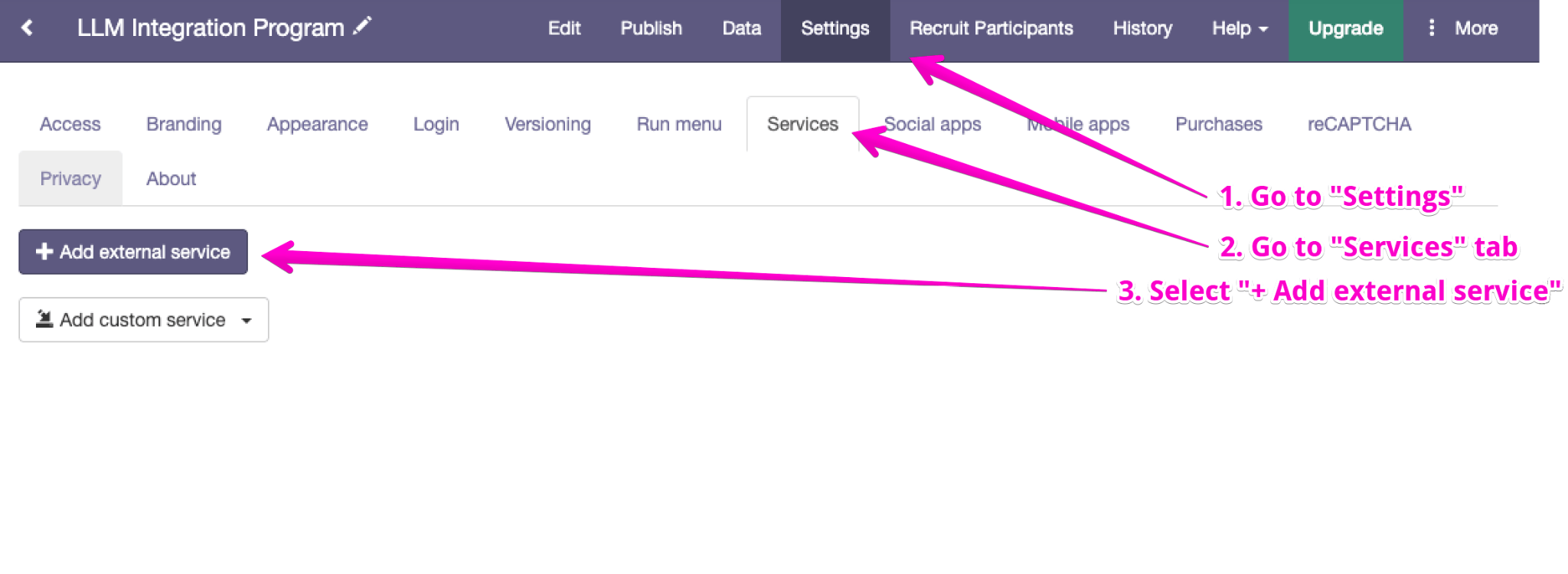
    Select Settings on the navigation bar, go to the Services tab and click on “+ Add external service”:

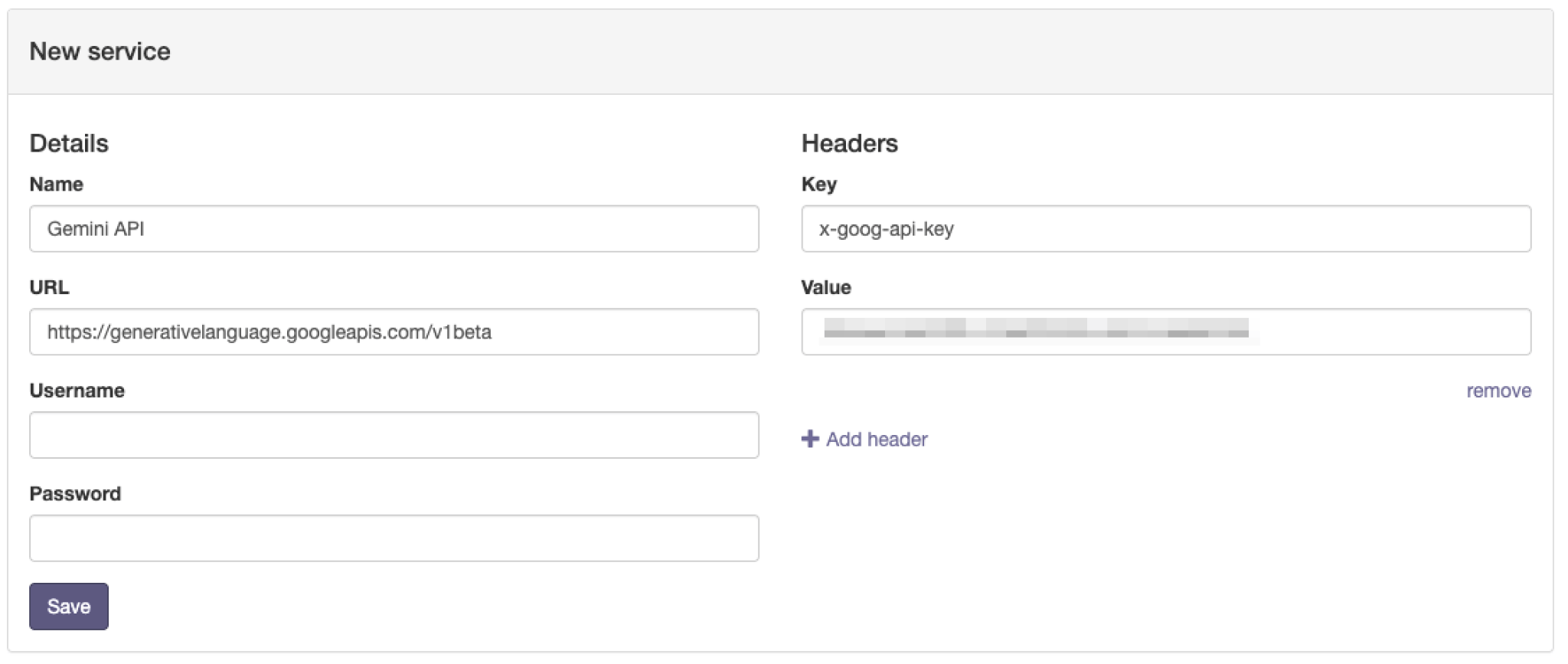
    Use these values to fill in these fields:

    NameGemini API
    URLhttps://generativelanguage.googleapis.com/v1beta

    Add a header with the name x-goog-api-key and the value [your API key]. Click Save.

    Step 3. Write your GuidedTrack program

    Here’s a complete example, a curiosity-driven learning tool that takes a topic the participant wants to understand better and returns a short, engaging explanation from Gemini:

    *question: What's one thing you've been wanting to learn about lately?
    	*type: paragraph
    	*save: curiosity_text
    
    >> prompt_for_gemini = "You are an enthusiastic teacher who loves making ideas accessible. The person wrote this about something they want to learn: '{curiosity_text}'. Give them a short, engaging explanation that builds their curiosity. Include one surprising fact and end with a question that encourages them to explore more. Keep it under 150 words."
    
    Please wait, generating your response...
    
    *service: Gemini API
    	*path: /models/gemini-2.5-flash:generateContent
    	*method: POST
    	*send: { "contents" -> [ { "parts" -> [ { "text" -> prompt_for_gemini } ] } ] }
    	*success
    		>> raw_from_gemini = it["candidates"]
    		>> content_from_gemini = raw_from_gemini[1]["content"]
    		>> part_from_gemini = content_from_gemini["parts"]
    		>> text_from_gemini = part_from_gemini[1]["text"]
    		
    		
    	*error
    		>> error_with_ai = 1
    		>> full_error_message = it
    
    *wait: data
    *clear
    
    *if: error_with_ai
    	The AI had an error.
    	
    	Full response including error: {full_error_message}
    	
    	Please report this bug.
    
    *if: not (error_with_ai)
    	*You wanted to learn about:*
    	{curiosity_text}
    	
    	*Here's something to get you started:*
    	{text_from_gemini}


    How the code works

    The program runs in three stages.

    Stage 1 – Collect input

    The program prompts the participant to describe something they have been wanting to learn about. The participant’s response is saved in curiosity_text. The program then constructs prompt_for_gemini, which combines the participant’s input with instructions for Gemini to provide a short, engaging explanation, including a surprising fact and a question to encourage further exploration. While GuidedTrack processes the request, the participant sees “Please wait, generating your response…”

    *question: What's one thing you've been wanting to learn about lately?
    	*type: paragraph
    	*save: curiosity_text
    
    >> prompt_for_gemini = "You are an enthusiastic teacher who loves making ideas accessible. The person wrote this about something they want to learn: '{curiosity_text}'. Give them a short, engaging explanation that builds their curiosity. Include one surprising fact and end with a question that encourages them to explore more. Keep it under 150 words."
    
    Please wait, generating your response...


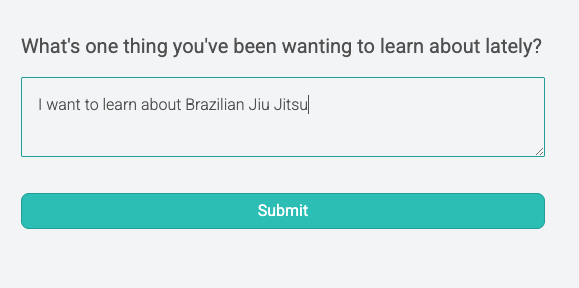
    This is what the user will see:

    Stage 2 – Call the API

    The *service block sends the participant’s input to Gemini’s generateContent endpoint. The request uses prompt_for_gemini as the input. On success, the response is parsed in several steps:

    1. The candidates are stored in raw_from_gemini,
    2. the content is extracted and stored in content_from_gemini,
    3. the response parts are stored in part_from_gemini,
    4. and the generated text is then extracted and stored in text_from_gemini.

    If the API call fails, error_with_ai is set to 1, and the full error response is stored in full_error_message for further handling.

    *service: Gemini API
    	*path: /models/gemini-2.5-flash:generateContent
    	*method: POST
    	*send: { "contents" -> [ { "parts" -> [ { "text" -> prompt_for_gemini } ] } ] }
    	*success
    		>> raw_from_gemini = it["candidates"]
    		>> content_from_gemini = raw_from_gemini[1]["content"]
    		>> part_from_gemini = content_from_gemini["parts"]
    		>> text_from_gemini = part_from_gemini[1]["text"]
    		
    	*error
    		>> error_with_ai = 1
    		>> full_error_message = it
    

    Stage 3 – Display the result

    *wait: data ensures the API response and updated variables are fully synced before the program continues. *clear removes the loading message. If an error occurred during the API call, the participant is shown an error message along with the full error response. Otherwise, the participant sees the topic they wanted to learn about followed by the response generated by Gemini.

    *wait: data
    *clear
    
    *if: error_with_ai
    	The AI had an error.
    	
    	Full response including error: {full_error_message}
    	
    	Please report this bug.
    
    *if: not (error_with_ai)
    	*You wanted to learn about:*
    	{curiosity_text}
    	
    	*Here's something to get you started:*
    	{text_from_gemini}
    

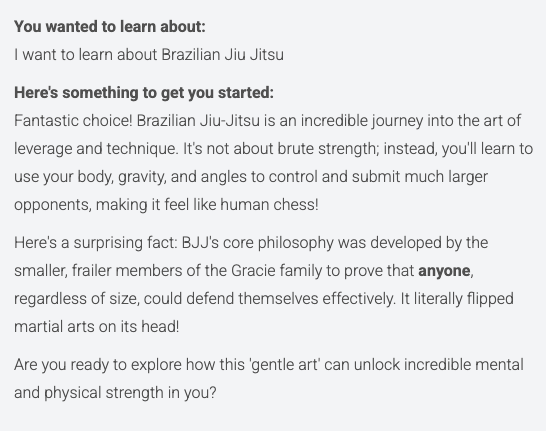
    This is what the user will see:

    Adapting This for Your Use Case

    The same pattern works for any scenario where you want Gemini to respond to something a participant wrote:

    • Wellbeing check-ins: Ask participants how they’ve been feeling this week and have Gemini suggest one small, evidence-based activity to try based on their response.
    • Habit journaling: Participants describe a habit they’re working on, and Gemini generates a personalized three-day micro-plan based on what they wrote.
    • Open-text summarization: Collect free-text responses across multiple questions and use Gemini to generate a plain-language summary of each participant’s overall input.
    • Prompt variations: Adjust Gemini’s output format, reading level, or tone by modifying the instruction text. Everything about how Gemini responds is controlled there.

    Also Read

    Build an AI-Powered Personal Coaching App with ChatGPT and GuidedTrack
    Build a Psychology Reflection Tool with Claude and GuidedTrack
    Use GuidedTrack to Build a ChatGPT-Style Web App with the OpenAI API
    The basic of using *service to embed other apps and tools

     
  • Nathan Darmawan 9:47 am on September 10, 2026 Permalink  

    Build an AI-Powered Personal Coaching App with ChatGPT and GuidedTrack 

    OpenAI’s ChatGPT is one of the most capable AI models available today. It handles nuanced instructions, follows system prompts reliably, and can generate thoughtful, personalized responses to almost anything a participant writes, making it a powerful addition to any GuidedTrack program.

    This tutorial walks you through a concrete example: a participant describes a personal challenge they’re facing, and ChatGPT responds with three practical, compassionate suggestions tailored to what they wrote. But the underlying pattern is the same whether you want the AI to generate personalized quiz feedback, summarize a participant’s open-text responses, recommend next steps based on their answers, write a custom reflection based on their mood, or do almost anything else with language. Once you understand how to connect ChatGPT to a GuidedTrack program, you can adapt it to a huge range of applications.

    What You’ll Need

    • An OpenAI API key (from platform.openai.com)
    • A GuidedTrack account with Custom Services enabled

    Step 1. Generate an OpenAI API key

    Log in to your OpenAI account, or sign up for a new one if you don’t have one yet. Once signed in, go to the OpenAI API and click “+ Create new secret key”. Copy the key and store it somewhere safe, it’s only shown once.

    Step 2. Create and configure your GuidedTrack program

    If you already have a GuidedTrack account, go here to login. If you don’t have a GuidedTrack account yet, go here to create one for free! Now, go to your programs page in GuidedTrack, and create a new GuidedTrack program and name it whatever you like.

    Select Settings on the navigation bar, go to the Services tab and click on “+ Add external service”:

    Use these values to fill in these fields:

    NameOpenAI API
    URLhttps://api.openai.com/v1

    Add a header with the name Authorization and the value Bearer [your API key]. Click Save.

    Step 3. Write your GuidedTrack program

    Here’s a complete example, a short reflection tool that asks a participant to describe a challenge they’re facing and returns GPT-powered suggestions:

    >> chatgpt_model = "gpt-5.4-mini"
    
    *question: What's a challenge you're working through right now?
    	*type: paragraph
    	*save: challenge_text
    
    >> prompt_for_chatgpt = "You are a supportive coach helping people navigate personal and professional challenges. Be warm, practical, and specific. The user is facing this challenge: '{challenge_text}'. Offer 3 practical, compassionate suggestions to help them move forward. Keep your response to 3 short paragraphs."
    
    Please wait, processing your input...
    
    *service: OpenAI API
    	*path: /responses
    	*method: POST
    	*send: { "model" -> chatgpt_model , "input" -> prompt_for_chatgpt }
    	*success
    		>> raw_from_chatgpt = it["output"]
    		>> content_from_chatgpt = raw_from_chatgpt[1]["content"]
    		>> text_from_chatgpt = content_from_chatgpt[1]["text"]
    
    	*error
    		>> error_with_ai = 1
    		>> full_error_message = it
    		
    *wait: data
    *clear
    
    *if: error_with_ai
    	The AI had an error.
    	
    	Full response including error: {full_error_message}
    	
    	Please report this bug.
    
    *if: not (error_with_ai)
    	*Your challenge:*
    	{challenge_text}
    	
    	*Here are some suggestions:*
    	{text_from_chatgpt}


    How the code works

    The program runs in three stages.

    Stage 1 – Collect input

    The program initializes the chatgpt_model variable with the model to use and prompts the participant to describe a challenge they are currently working through. The participant’s response is saved in challenge_text. The program then constructs prompt_for_chatgpt, which combines the participant’s challenge with instructions for the AI to provide three practical and compassionate suggestions. While GuidedTrack processes the request, the participant sees “Please wait, processing your input…”

    >> chatgpt_model = "gpt-5.4-mini"
    
    *question: What's a challenge you're working through right now?
    	*type: paragraph
    	*save: challenge_text
    
    >> prompt_for_chatgpt = "You are a supportive coach helping people navigate personal and professional challenges. Be warm, practical, and specific. The user is facing this challenge: '{challenge_text}'. Offer 3 practical, compassionate suggestions to help them move forward. Keep your response to 3 short paragraphs."
    
    Please wait, processing your input...
    

    This is what the user will see:

    Stage 2 – Call the API

    The *service block sends the participant’s input to OpenAI’s Responses API. The request uses the chatgpt_model variable for the model and prompt_for_chatgpt for the input.

    If the API call is successful, the response is parsed in three steps:

    1. The full output is stored in raw_from_chatgpt,
    2. the content is extracted from raw_from_chatgpt[1][“content”] and stored in content_from_chatgpt,
    3. and the generated text is then extracted from content_from_chatgpt[1][“text”] and stored in text_from_chatgpt.

    If the API call fails, error_with_ai is set to 1, and the full error response is stored in full_error_message for further handling.

    *service: OpenAI API
    	*path: /responses
    	*method: POST
    	*send: { "model" -> chatgpt_model , "input" -> prompt_for_chatgpt }
    	*success
    		>> raw_from_chatgpt = it["output"]
    		>> content_from_chatgpt = raw_from_chatgpt[1]["content"]
    		>> text_from_chatgpt = content_from_chatgpt[1]["text"]
    
    	*error
    		>> error_with_ai = 1
    		>> full_error_message = it
    

    Stage 3 – Display the result

    *wait: data ensures the API response and any updated variables are fully synced before the program continues. *clear removes the loading message. If an error occurred during the API call, the participant is shown an error message along with the full error response. Otherwise, the participant sees their challenge followed by the suggestions generated by the AI.

    *wait: data
    *clear
    
    *if: error_with_ai
    	The AI had an error.
    	
    	Full response including error: {full_error_message}
    	
    	Please report this bug.
    
    *if: not (error_with_ai)
    	*Your challenge:*
    	{challenge_text}
    	
    	*Here are some suggestions:*
    	{text_from_chatgpt}
    

    This is what the user will see:

    Adapting This for Your Use Case

    The same pattern works for any scenario where you want ChatGPT to respond to something a participant wrote:

    • Assessment feedback: After scoring a quiz, send the score and a summary of responses to OpenAI and ask it to write personalized feedback.
    • Open-text analysis: Ask participants to write a short reflection, then use ChatGPT to categorize or summarize what they wrote.
    • Dynamic next steps: Based on what a participant selected or wrote, ask ChatGPT to recommend a personalized next action or resource.
    • System prompt variations: Control the model’s tone, format, and constraints through the system prompt. Want bullet points, a specific reading level, or a particular persona? Put it there.

    Also Read

    Build an AI-Powered Learning App with Gemini and GuidedTrack
    Build a Psychology Reflection Tool with Claude and GuidedTrack
    Use GuidedTrack to Build a ChatGPT-Style Web App with the OpenAI API
    The basic of using *service to embed other apps and tools

     
c
compose new post
j
next post/next comment
k
previous post/previous comment
r
reply
e
edit
o
show/hide comments
t
go to top
l
go to login
h
show/hide help
shift + esc
cancel